Slack
Slack is the one destination we format specifically. When the webhook URL you provide is a Slack Incoming Webhook, we send Slack Block Kit rather than plain text, which turns the alert into a message with the site name linked directly to the finding in your account.
Creating the webhook URL
- Visit https://api.slack.com/apps
- Click Create New App, choose From scratch, provide an App Name and pick your Workspace. Then click Create App.
- In the new app, click Incoming Webhooks, switch the toggle to On and click Add New Webhook.
- Select your Workspace and then Channel for webhook, then click Allow.
- Copy the Webhook URL.
Sending alerts to Slack
Open the Config modal on the watcher you want alerts from, enable Send Webhook alerts, and paste the URL into Target webhook URI.
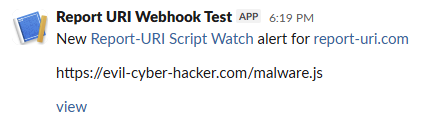
Repeat per watcher. Each watcher carries its own webhook target, so different sites can go to different channels.
Things to watch for
- Formatting is triggered by the URL, which must be a
https://hooks.slack.com/services/Incoming Webhook. A Slack URL of any other kind is treated as a generic endpoint and receives plain JSON. - The webhook URL is a secret. Anyone holding it can post to the channel, so treat it like a credential and rotate it in Slack if it leaks.
- A webhook posts to the channel chosen when it was created. To move alerts to a different channel, create a new webhook and update the watcher.
Audit trail events
The Audit Trail webhook supports Slack too, formatted the same way. It is configured separately from Watch alerts - see Audit Trail.
Official documentation
Slack - Sending messages using incoming webhooks
Start Monitoring with Report URI
Already using us? Create the webhook in Slack, then paste it into any watcher's Config modal.
New to Report URI? Watch products and webhooks are available on Business plans and higher.